



This page explains how Event Hosts check-in their customers.
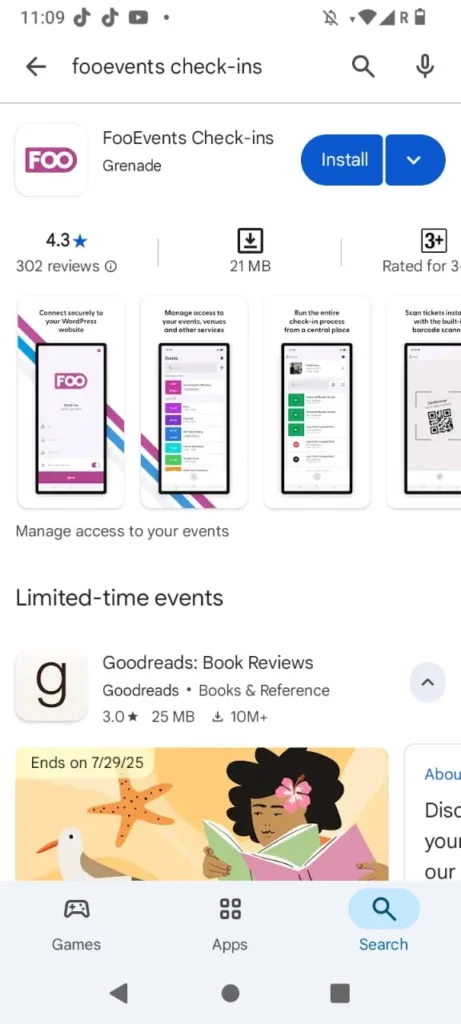
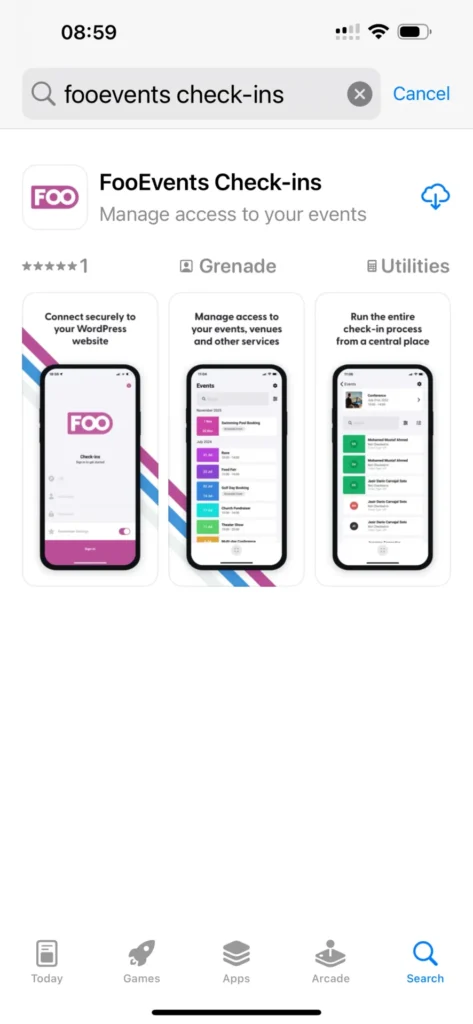
First download the app according to your device.
Scanning Seysells online tickets
As an event host on Seysells create a password that you only use on Seysells for your email address
If you do not know your password set one using following link https://seysells.com/my-account/lost-password/
To use a scanning app effectively, it’s crucial that all users have the app installed on their mobile phones and that their devices are connected to the internet.
For large events with high ticket sales, using multiple ticket scanners is crucial to manage entry efficiently and prevent bottlenecks. Having multiple scanners allows for faster processing of attendees, especially when dealing with numerous entry points e.g VIP ticket holders can have a different entry point.
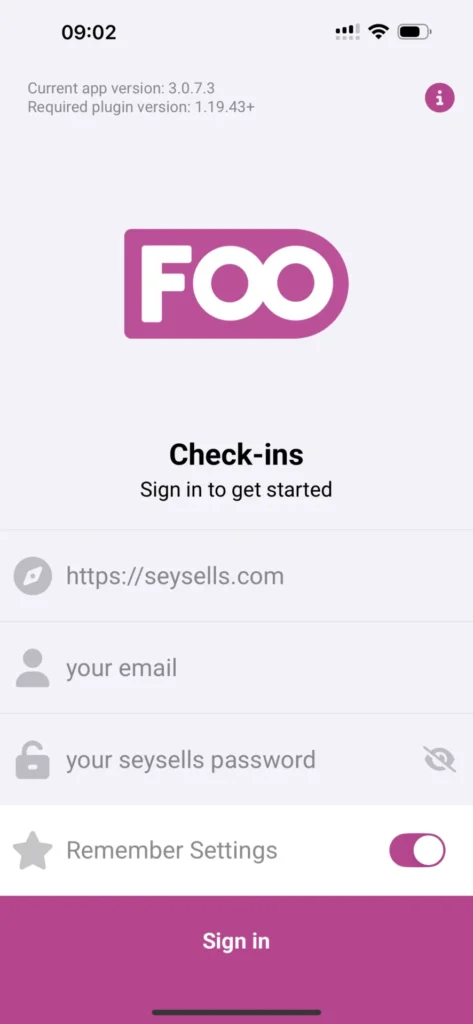
Login in the scanning app using the following details. You can enter the details for the users.
https://seysells.com
Your email
Your Seysells password
If necessary after the event change your Seysells password so scanners no longer have access to your events data.
How to install
Enter the following details on the login screen:
- URL = https://seysells.com
- Username & Password – The access details of the Event Host
How to use
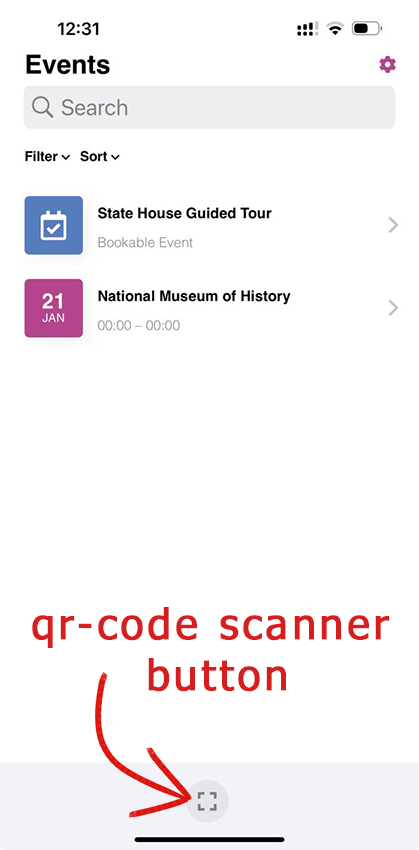
After logging in as a host you will see your list of events.
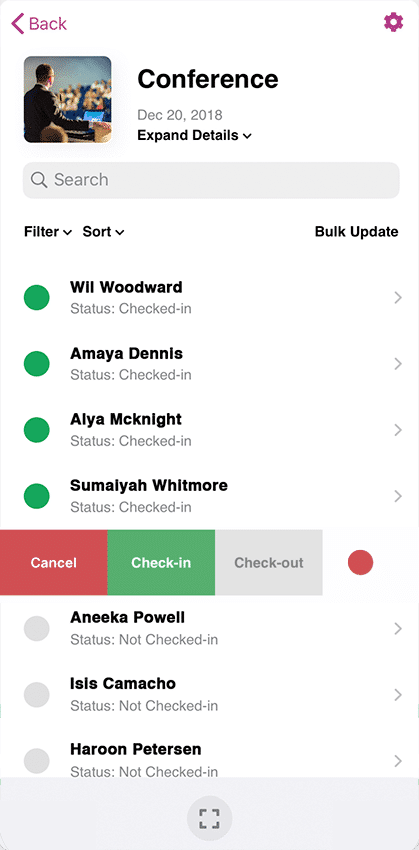
Clicking on a specific event you will see those who have bought ticket for that event
* When a single customer have bought more than one ticket all individual qr-code must be scanned separately to complete check-in
Search
Easily find events and ticket information by searching for attendees by name or ticket ID.
Filters and Sorting
Filter and sorting options are available for both events and attendees which helps to keep things organized and makes information easier to find.
Swipe Right
Check-in, check-out or cancel individual attendee access directly from the attendee listing screen by swiping right on the attendee’s name.
Flexible Event Scanning
Scan tickets for a specific event or use the global scan option to scan tickets from any screen.
Fast Auto Check-ins
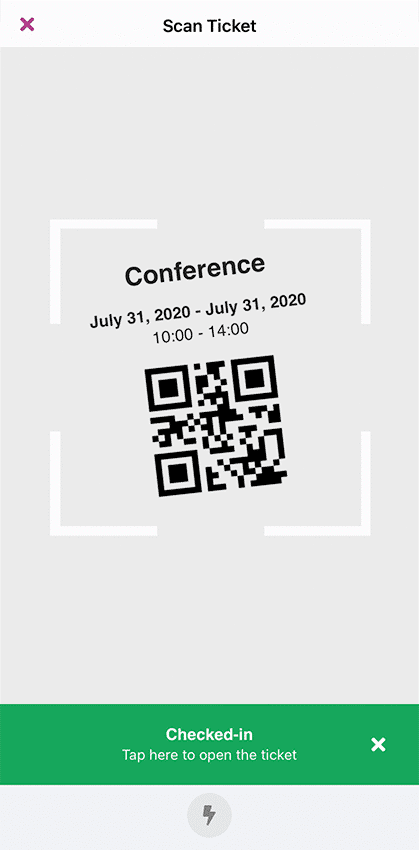
Speed up check-ins using the scanner, which will automatically check-in an attendee and return to the scanning screen once their ticket has been validated.
QR Code Support
Scan the QR code contained on the attendee’s ticket directly from your device using the built-in camera.
View Attendee Information
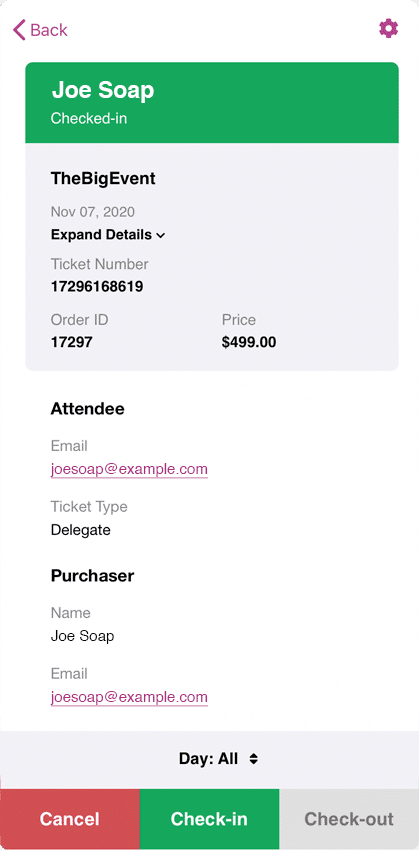
View information for attendees as well as any custom attendee fields that were captured when the ticket was purchased.
Multi-day Support
Check-in attendees over multiple days if it is a Multi-day event.